
Knowing how to record your screen can be useful in many situations. You might want to create a YouTube tutorial, demonstrate how a software application works, record an online presentation, explain a process to a colleague, or show someone how to use a website.
You do not need an expensive camera or a complicated recording setup to get started. You can record your computer screen directly in your browser, use free software such as OBS Studio, or use the screen recording features already available on Windows, Mac, iPhone, and Android.
The best method depends on what you want to do with the recording afterward.
For example, if you want to record a software tutorial and turn it into a finished video, Fliki lets you record your screen and webcam directly in the browser, then edit the recording with AI-powered features. If you need more advanced control over recording scenes and audio sources, OBS Studio is another option. And if you only need a quick recording, your computer or phone may already have everything you need.
In this guide, you will learn how to record your screen using four different approaches, how to include your voice and computer audio, and how to turn your recording into content for YouTube, social media, or online courses.
What Is Screen Recording?
Screen recording captures the activity displayed on your device as a video file. Depending on the tool, you can record your entire display, a selected area, an application window, or a browser tab.
Some screen recorders also let you capture your microphone, webcam, or computer audio. This makes it possible to demonstrate a process while explaining each step.
Screen recording is commonly used for:
- Software tutorials and demonstrations
- YouTube videos and educational content
- Online courses and presentations
- Product demonstrations for websites
- Technical support and troubleshooting
- Gaming videos and walkthroughs
- Mobile app tutorials
- Remote work updates and training materials
A simple recording may be enough when you just want to show someone how to perform a task. If you plan to publish the video, you may also want to edit mistakes, add captions, improve the narration, or create different versions for different platforms.
Quick Comparison: The Best Ways to Record Your Screen
| Tool or method | Best for | Main advantage |
|---|---|---|
| Fliki | Tutorials, demonstrations, and YouTube content | Screen recording and AI-assisted editing in one workflow |
| OBS Studio | Advanced recording and streaming | Extensive control over scenes, video sources, and audio |
| Windows built-in tools | Quick computer recordings | No separate recorder installation required |
| macOS Screenshot toolbar | Simple Mac recordings | Built directly into macOS |
| iPhone Screen Recording | Mobile app demonstrations | Convenient recording directly on the phone |
| Android Screen Recorder | Android tutorials and app demonstrations | Built-in capture and optional audio |
You do not necessarily need to install multiple tools. Start with the method that matches your goal, and move to a more advanced setup only when you need additional features.
1. How to Record Your Screen With Fliki
If you want to record your screen and turn the result into a tutorial, Fliki is a practical option.
Fliki is an AI-powered video platform with a browser-based screen recorder. It can record your screen, webcam, or both, with options for microphone and system audio. After recording, you can use its editing workflow to generate captions, trim unnecessary sections, add AI narration, and prepare the video for publication.
Unlike a basic recorder that focuses primarily on capturing and saving footage, Fliki combines screen recording with tools designed to help you produce a finished video.
You can use it for software walkthroughs, website tutorials, product demonstrations, online lessons, and YouTube content.
Try Fliki
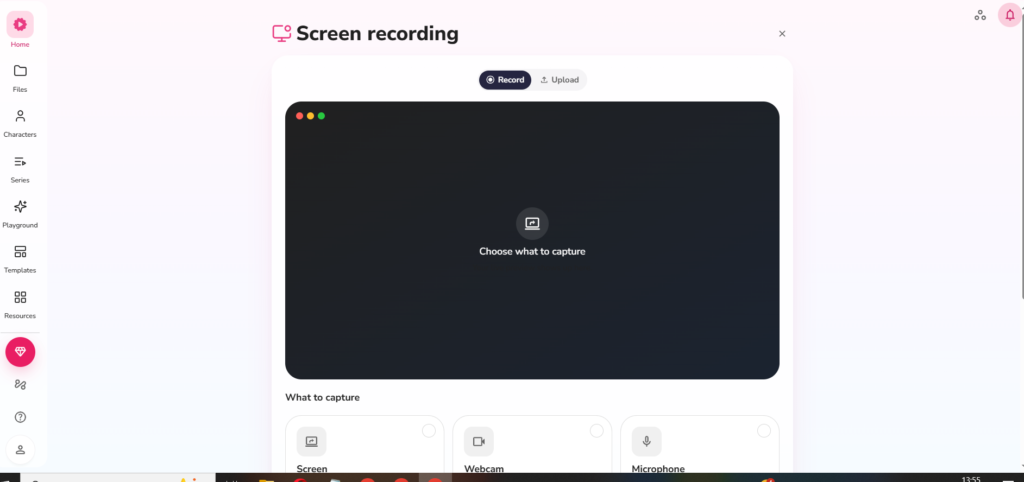
How to record your screen with Fliki
<text> <escape></escape> </text>
Step 1: Open Fliki
Visit Fliki and sign in or create an account. Open the screen recording feature in the current interface.
Because Fliki runs in a supported web browser, you do not need to install a separate desktop recording application to get started.
Step 2: Choose what to record
Select the recording setup that suits your project. You can choose screen recording, webcam recording, or a combination of the two.
For example, if you are demonstrating how to use WordPress, you might record your browser window while placing your webcam in a corner of the video. If you prefer a faceless tutorial, you can record only the screen and add narration afterward.
Step 3: Configure your audio
Choose whether to include microphone audio and, where supported, system audio. Check the available permissions and make sure the correct microphone is selected.
If you want to explain the process while recording, speak clearly and avoid moving too quickly through the steps. If you prefer not to narrate live, you can record the demonstration first and use an available voiceover workflow later.
Step 4: Start recording
Select the screen, window, or browser tab you want to capture. Follow the browser’s sharing prompts, then start the recording.
Carry out the demonstration as you normally would. For a software tutorial, pause briefly after important actions so viewers have time to understand what is happening.
Step 5: Stop and review the recording
When you finish, stop the recording and review the footage. Check that the correct window was captured, the text is readable, and the audio is clear.
It is worth checking the recording before editing. Fixing a missing step or repeating a short demonstration can be easier than trying to repair an incomplete video later.
Step 6: Edit the recording
Use the available editing features to improve the video. Depending on the workflow, these may include trimming, automatic captions, AI voiceover, audio cleanup, visual additions, and translation.
For example, you can remove an unnecessary pause, add captions to a software demonstration, or replace a live narration with an AI-generated voiceover if that better suits your content.
Step 7: Export the finished video
Choose the export settings that fit your destination. A standard widescreen format is suitable for most YouTube tutorials, while a vertical format may be more appropriate for Shorts or Reels.
Review the exported file before publishing to ensure that the audio, captions, and visuals are synchronized correctly.
Fliki’s official screen recorder page describes these recording and editing capabilities. The available limits and export options may depend on the current plan. https://fliki.ai/features/screen-recorder
What makes Fliki useful for screen recording?
The main benefit is the ability to move from recording to editing without building a workflow around several separate applications.
Imagine that you want to create a tutorial explaining how to configure a WordPress plugin. You can record the steps in your browser, capture your explanation, and then use the editing tools to improve the result. You do not have to treat the raw recording as the finished video.
Fliki is particularly useful when you want to:
- Record a screen and webcam together.
- Create software tutorials and product demonstrations.
- Add captions to make a tutorial easier to follow.
- Use AI narration instead of recording every line yourself.
- Prepare content for YouTube and social media.
- Adapt a recording for different languages or formats using supported features.
The workflow is straightforward: record, review, edit, and export.
You may also like: AI Voice Generator for YouTube: How to Create Voiceovers with Text to Speech (2026 Guide)
Can Fliki replace a traditional screen recorder?
For many everyday tasks, yes. If your goal is to record a browser, demonstrate software, capture your voice, and prepare an educational video, Fliki can cover the recording and much of the post-production process in one place.
It is not identical to every dedicated recorder, however. OBS Studio offers more extensive control over scenes, capture sources, audio routing, and live-streaming setups. The right choice depends on whether you prioritize an integrated video creation workflow or detailed recording controls.
For most beginners creating tutorials, Fliki is worth trying because it combines the screen recording itself with tools that can help turn the footage into publishable content.
Start recording with Fliki
2. How to Record Your Screen With OBS Studio
OBS Studio is a free, open-source application for screen recording and live streaming. It is particularly useful when you need more control over how your recording looks and sounds.
With OBS, you can combine different sources in a single scene. For example, you can capture your desktop, add a webcam overlay, include microphone audio, and arrange the elements before recording.
This makes OBS suitable for detailed tutorials, gaming videos, software demonstrations, presentations, and creators who want to build a repeatable recording setup.
Download it from the official website: https://obsproject.com/
How to set up OBS Studio
Step 1: Install OBS Studio
Download the version for your operating system from the official OBS website and follow the installation instructions.
Step 2: Create a scene
OBS uses scenes to organize your recording layout. You can create a scene for a full-screen tutorial, another for a webcam presentation, and another for a demonstration that combines the two.
Step 3: Add your recording source
In the Sources panel, click the plus icon and select an appropriate source. Depending on your operating system and the type of content, this might be display capture, window capture, game capture, or a webcam.
Choose the source that captures only what you need. For a tutorial about a particular application, capturing its window can help avoid exposing unrelated desktop activity.
Step 4: Configure the audio
Check the audio mixer and confirm that the correct microphone is selected. Speak into the microphone and watch the audio meter to verify that OBS is receiving sound.
If you also need computer audio, check the relevant source and perform a test recording. Audio behavior can vary by operating system and configuration.
Step 5: Start recording
Click Start Recording, perform your demonstration, and click Stop Recording when you finish.
Open the resulting file and review both the video and audio before starting a longer recording session.
Recommended OBS settings for beginners
You do not need to master every setting before recording your first video. Start with a simple configuration and adjust it based on the results.
| Setting | Suggested starting point |
|---|---|
| Resolution | 1920 × 1080, if supported by your display and computer |
| Frame rate | 30 FPS for most tutorials |
| Video source | Display Capture or Window Capture |
| Microphone | A headset or external microphone |
| Audio | Test microphone and system audio separately |
| Recording format | A format compatible with your editing workflow |
These settings are starting points, not universal rules. Gaming footage, high-frame-rate demonstrations, or less powerful computers may require different settings.
Advantages and disadvantages of OBS Studio
OBS is powerful because you can configure multiple sources and create layouts that you can reuse. It also provides detailed control over recording and streaming.
The disadvantage is that the interface can feel complicated when you only want to make a quick recording. You may need to configure sources, audio, and output settings before you can begin.
Choose OBS when recording flexibility is more important than having an integrated AI editing workflow.
3. How to Record Your Screen on Windows Without Installing Software
Windows has built-in recording options, so you may not need a separate application for simple screen captures.
Two useful options are the Snipping Tool in supported versions of Windows 11 and Xbox Game Bar for supported applications and games. They serve different purposes, so it helps to choose the right one.
Option A: Record a selected area with the Snipping Tool
The Snipping Tool in supported Windows 11 versions includes a video recording feature that lets you select an area of the screen.
To use it:
- Open the Start menu.
- Search for Snipping Tool.
- Open the application.
- Select the video recording mode.
- Click New.
- Drag to select the area you want to record.
- Start recording.
- Perform the actions you want to demonstrate.
- Stop the recording and save the video.
This is convenient when you want to record a short browser demonstration or explain a particular part of an application.
The exact controls and audio options can depend on your Windows version. If you need several recording sources, more advanced audio control, or a complex layout, use a dedicated recorder instead.
Official guide: https://support.microsoft.com/en-us/windows
Option B: Record a supported application with Xbox Game Bar
Xbox Game Bar is built into Windows and can record supported applications and games. It is useful for capturing a quick clip without setting up a separate recording project.
Follow these steps:
- Open the game or application you want to record.
- Press Windows + G to open Xbox Game Bar.
- Open the Capture widget if necessary.
- Start recording from the widget, or press Windows + Alt + R.
- To toggle microphone recording, use Windows + Alt + M, where supported.
- Perform the actions you want to capture.
- Press Windows + Alt + R again to stop recording.
Recordings are generally saved as MP4 files in the Videos → Captures folder.
Xbox Game Bar is designed for supported applications and games, not every possible desktop recording situation. If it cannot capture the window you need, try the Snipping Tool or OBS Studio.
Microsoft’s instructions are available here: https://support.microsoft.com/en-us/windows
Which Windows option should you use?
Use the Snipping Tool when you need a selected area of the screen. Use Xbox Game Bar for a supported application or game. Choose OBS if you need more control, or Fliki if you want to record and then edit the footage as part of a tutorial production workflow.
4. How to Record Your Screen on a Mac
Mac users can record their screens using built-in macOS tools. For basic screen recording, you do not need to install additional software.
The easiest method is the Screenshot toolbar, which can capture the entire screen or a selected portion.
Record your Mac screen using the Screenshot toolbar
- Press Shift + Command + 5.
- The Screenshot toolbar will appear.
- Choose Record Entire Screen or Record Selected Portion.
- If you select a portion, adjust the recording area.
- Open Options to review the available microphone and save-location settings.
- Click Record.
- Perform the actions you want to capture.
- Click the Stop button in the menu bar when you finish.
- Open the saved video and check the result.
Apple documents this method for supported versions of macOS, including macOS Mojave 10.14 and later. The available options can differ by version. https://support.apple.com/en-gb/102618
How to record your voice on a Mac
If you want to explain what you are doing, open the recording options and select a microphone where available. Make a short test recording and play it back to check the volume and clarity.
Do not assume that recording your screen automatically captures every sound from your computer. Microphone audio and internal system audio are different sources, and internal audio capture may require a different setup.
Can you use QuickTime Player?
Yes. Open QuickTime Player, then select File → New Screen Recording. On current versions of macOS, this opens the screen recording controls.
The built-in tools are sufficient for many basic recordings. If you need several audio sources, a webcam layout, or more advanced recording controls, OBS Studio may be a better fit.
5. How to Record Your Screen on an iPhone
You can record your iPhone screen directly from Control Center. This is useful for demonstrating mobile apps, explaining phone settings, recording a workflow, or preparing short tutorials.
Step-by-step instructions
- Open Control Center by swiping down from the top-right corner of the screen.
- Find the Screen Recording control.
- If it is missing, add it through the Control Center customization options.
- Tap the recording button.
- Wait for the countdown.
- Close Control Center and use the app you want to demonstrate.
- To stop recording, tap the recording indicator or return to Control Center and stop it.
- Open the Photos app to find the saved video.
How to record your voice on an iPhone
If you want to narrate the recording, touch and hold the Screen Recording control before starting and enable the microphone option.
Some applications may restrict recording their content, and audio capture can vary depending on the app. If you are recording a tutorial, test the microphone and review the saved video before recording a longer demonstration.
For a mobile app tutorial, it also helps to enable Do Not Disturb so that incoming notifications do not interrupt the recording.
Apple’s official guide: https://support.apple.com/en-euro/guide/iphone/iph52f6e1987/ios
6. How to Record Your Screen on Android
Many Android phones include a built-in screen recorder. The feature can capture activity in an application and, on supported devices, include audio or show touches on the screen.
The precise interface depends on the phone manufacturer and Android version.
Step-by-step instructions
- Swipe down twice from the top of the screen to open Quick Settings.
- Find Screen Recorder or Screen record.
- If the option is missing, tap Edit and check whether you can add the tile.
- Tap the screen recording option.
- Choose the available audio settings and whether to show screen touches.
- Tap Start and wait for the countdown.
- Perform the actions you want to capture.
- Stop the recording using the notification or recording controls.
- Open Photos or Gallery to find the saved video.
Google provides instructions for supported Android devices here: https://support.google.com/android/answer/9075928?hl=en-GB
Tips for better phone recordings
Before recording, close unrelated apps and check that you have enough free storage. Enable Do Not Disturb to prevent private notifications from appearing in the video.
Move slowly when demonstrating an application. If the viewer needs to follow a sequence of taps, give each action enough time to be visible.
For a tutorial intended for YouTube, you may also want to add a voiceover, captions, or a short introduction after recording. You can use a suitable editing tool to prepare the footage for publication.
7. How to Record Your Computer Screen With Audio
A screen recording can look perfect and still be unusable if the audio is missing. Before you start, decide whether you need microphone audio, system audio, or both.
Microphone audio captures your spoken explanation. System audio captures sounds produced by the computer, such as application sounds or playback. These are separate sources, and not every recorder captures both automatically.
Audio checklist
- Select the correct microphone.
- Check the microphone input level.
- Confirm whether system audio is supported and enabled.
- Close applications that may produce unwanted sounds.
- Make a short test recording.
- Play the test back with headphones.
- Check that your voice is clear and not distorted.
If your voice is too quiet, move closer to the microphone or adjust the input level. If the recording contains echo, check whether your speakers are feeding sound back into the microphone.
For most tutorials, clear narration is more important than expensive equipment. A quiet room and a short audio test can significantly improve the result.
8. How to Turn a Screen Recording Into a YouTube Tutorial
Recording your screen is only the first step. A raw recording may contain pauses, mistakes, unnecessary movements, or sections that are difficult for viewers to follow.
Before publishing, review the footage and remove anything that does not help explain the subject. Add an introduction, make sure the steps are easy to understand, and use captions or callouts when they help the viewer follow along.
This is where Fliki can be particularly useful. Because its screen recorder is part of a broader AI video workflow, you can record the demonstration and then use available editing features to refine the video.
A practical workflow for a software tutorial
Step 1: Plan the demonstration.
Write a short outline and decide which steps you need to show. This reduces mistakes and makes the final recording easier to follow.
Step 2: Record the screen.
Use Fliki, OBS Studio, or a built-in recorder, depending on your requirements. If you are demonstrating software, keep the cursor movements deliberate and make important interface elements easy to see.
Step 3: Review the recording.
Check that every step is visible and that you have not accidentally exposed private information. Repeat any important section that was missed.
Step 4: Improve the narration.
Make sure the explanation matches what appears on the screen. If you recorded live narration, remove mistakes and unnecessary pauses. Alternatively, use a supported AI voiceover workflow if it better suits the video.
Step 5: Add captions.
Captions can help viewers understand the tutorial, particularly when they watch without sound. Check the generated text for technical terms, product names, and other words that automated transcription may get wrong.
Step 6: Export and review.
Choose the appropriate format for the destination, then watch the exported file before publishing.
Try Fliki for screen recording and AI-assisted editing
9. Common Screen Recording Problems and How to Fix Them
Even a simple recording can go wrong. Most problems come from permissions, audio settings, unsupported windows, or computer performance.
The recording has no sound
Check whether the microphone was enabled before recording and whether the correct input device was selected. If you need computer audio, confirm that your chosen recorder supports the source and that it is enabled.
The recording is black
Some applications restrict screen capture, and operating-system privacy settings can block recording permissions. Check the permissions for your browser or recording application, then try capturing a different window to determine whether the problem is specific to one app.
The video is laggy
Close unnecessary applications and reduce the recording resolution or frame rate if your computer struggles to keep up. Make a short test recording before attempting a longer session.
The file is too large
Long recordings at high resolutions can consume considerable storage. Use a reasonable resolution for your project, trim unnecessary footage, and export the final video using settings appropriate for the destination.
Notifications appear in the recording
Enable Do Not Disturb or the equivalent focus mode before you start. Close private tabs, hide sensitive information, and check the desktop before recording.
The text is difficult to read
Make sure the application window is large enough and the recording resolution is appropriate. If you are demonstrating a website, browser zoom can help make important text more visible. Review the final video on a smaller screen as well, since many viewers watch tutorials on phones.
10. Which Screen Recording Method Is Best?
There is no single best screen recorder for every situation. The right choice depends on whether you need a quick capture, detailed recording controls, or an integrated editing workflow.
| Your goal | Recommended method |
|---|---|
| Record and edit a software tutorial | Fliki |
| Capture a screen with advanced scene and audio controls | OBS Studio |
| Record a selected area on supported Windows 11 versions | Snipping Tool |
| Record a supported Windows application or game | Xbox Game Bar |
| Make a quick Mac screen recording | macOS Screenshot toolbar |
| Record an iPhone app | Built-in iPhone Screen Recording |
| Record an Android app | Built-in Android Screen Recorder |
If you are new to screen recording, start with the simplest option that meets your needs. You can move to more advanced software when you need more control over the recording or editing process.
For creators who want to produce tutorials, Fliki offers a useful combination: screen capture, optional webcam and audio, and AI-assisted post-production. OBS is more appropriate when you want to configure the recording environment in greater detail.
Conclusion
Recording your screen does not have to be complicated. You can capture your computer screen directly in a browser with Fliki, use OBS Studio for more advanced recording control, or rely on built-in screen recording tools in Windows and macOS. iPhone and Android devices also offer convenient ways to capture mobile activity without installing another application.
The best method depends on what you plan to do with the recording.
If you simply need to show someone how to perform a task, a built-in recorder may be enough. If you want to create tutorials, demonstrations, or YouTube videos, an integrated workflow can save time by combining recording and editing.
Fliki is worth considering when you want to record your screen and continue directly into AI-assisted video production. OBS Studio is a strong alternative when you need more control over recording sources, scenes, and audio.
Whichever method you choose, make a short test recording, check the audio, and review the finished video before publishing. A clear demonstration with good narration is more useful to viewers than a complicated recording setup.
Affiliate Disclosure
Some links in this article are affiliate links. If you purchase a product or sign up for a service through one of these links, I may earn a commission at no additional cost to you.