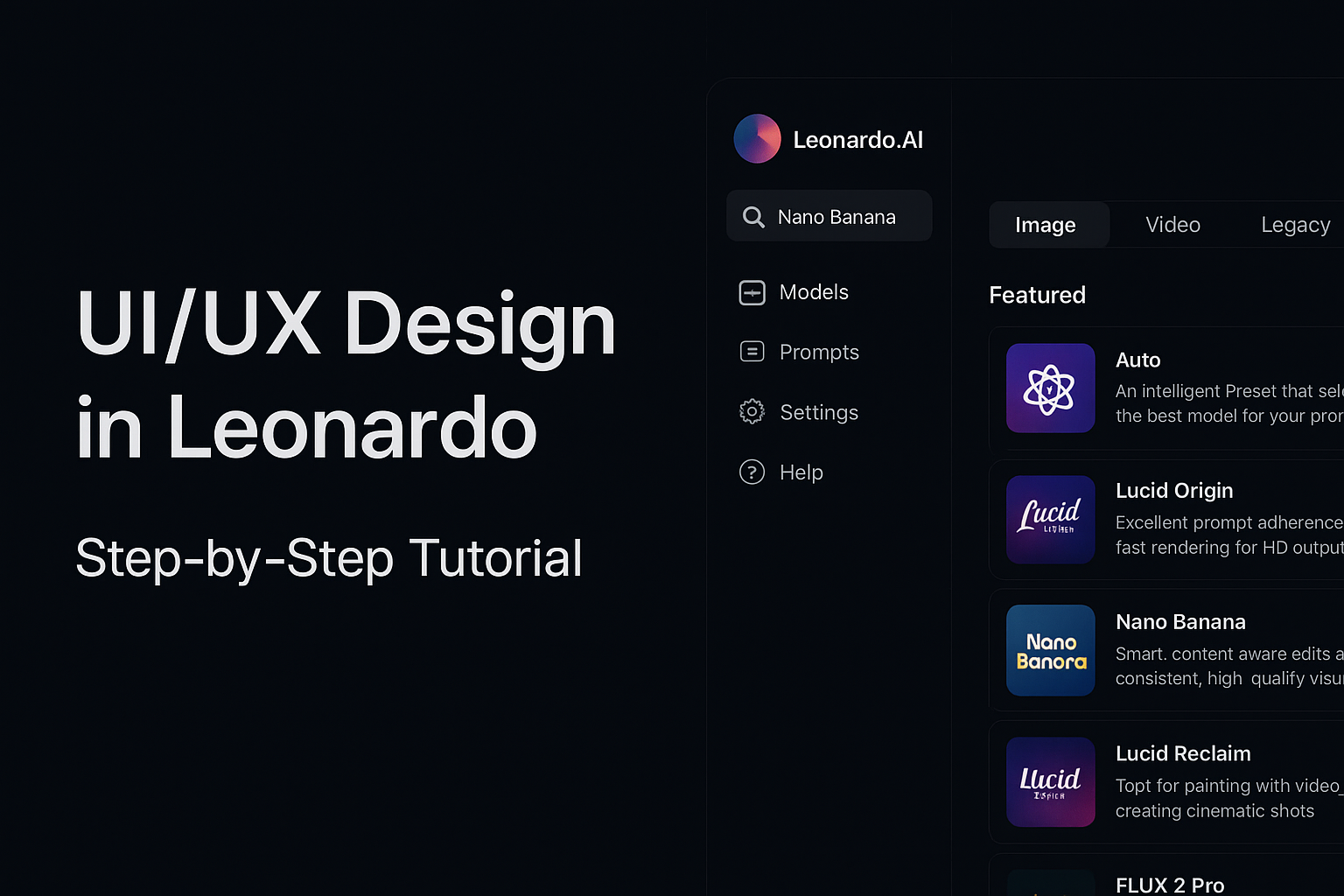
Leonardo AI is one of the best tools for generating UI/UX concepts, wireframes, dashboards, landing pages, and full product interfaces. Unlike traditional design tools, Leonardo lets you use prompts, moodboards, references, and style presets to create clean, modern layouts in seconds — even if you’re a complete beginner.
This guide walks you through exactly where to click, how to choose models, how to insert references, and how to build UI moodboards.
Perfect for designers, founders, and beginners building apps and websites.
Where to Find the UI / UX Models in Leonardo AI
Leonardo does not have a section labeled “UI/UX,” so beginners often get confused.
Here’s what you actually need to do:
Step 1 — Go to “Models”
In the left sidebar, click Models → Image.
Step 2 — Choose a Model Optimized for UI/UX
Use these recommended models:
| Model | Best For | Why Use It |
|---|---|---|
| Flux 1.1 Pro | Clean UI, dashboards, mobile apps | Very stable layout structure and typography |
| Nero Banna Pro | Modern UI concepts, gradients | Crisp geometry + soft shadows |
| Photon 1.0 | Web design, hero sections | Balanced visuals + minimal distortion |
| GPT-Image-1 | Wireframes & simple layouts | Great for low-detail UI structure |
| Phoenix 3.0 | Landing pages & marketing UI | Strong composition + visual clarity |
Tip: For UI design, avoid highly artistic models like “Lucid” or “Phoenix Hyperreal” — they create too much noise.
Leonardo Beginner Workflow — Step-by-Step
Step 1 — Set Image Dimensions
For UI/UX choose:
Desktop UI: 1600×1200
Mobile UI: 1080×1920
Dashboard: 1920×1080
In Leonardo:
Image Dimensions → Custom → Enter your values
Step 2 — Turn ON “Dynamic” Mode
This improves:
✔ Alignment
✔ text-like shapes
✔ contrast
✔ lighting consistency
Step 3 — Add Your Moodboard
Moodboards help Leonardo lock onto your style.
You can include:
✔ Color palette
✔ Typography samples
✔ UI references
✔ Layout ideas
✔ Components (buttons, cards, grids)
Upload your moodboard using:
Image Guidance → Add Image → Upload moodboard
Then set:
- Strength: 0.2–0.35 (light guidance)
- Mode: Balanced
Step 4 — Add Reference Images (Optional But Powerful)
If you want a specific layout structure:
Use Image Prompt → Upload a UI reference.
Set:
- Weight: 0.4–0.6 for layout reference
- Weight: 0.1–0.2 for color reference
Step 5 — Write Your UI Prompt
Example included below — or use the ready prompts section.
Step 6 — Generate
Click Generate
→ wait a few seconds
→ check variations
→ upscale the best one.
10 Ready-to-Use UI/UX Prompts for Leonardo AI
These prompts are crafted for:
✔ App UI
✔ Website layouts
✔ Dashboards
✔ SaaS interfaces
✔ Landing pages
✔ Wireframes
You can paste them directly into Leonardo.
1. Mobile App UI: Minimal Finance Dashboard
clean modern mobile finance dashboard UI, white layout, soft shadows, neumorphism + flat mix, clear typography, grid layout, pastel accents, iOS style, card components, perfect alignment, ultra-sharp edges, 1080x1920
2. SaaS Dashboard (Dark Mode)
dark SaaS analytics dashboard, high-contrast charts, glass UI elements, smooth gradients, futuristic minimal style, perfect spacing, pixel-perfect grid, 1920x1080, professional product design
3. Web Landing Page – Hero Section
modern landing page hero section, centered headline, product mockup on right, soft gradient background, premium SaaS look, crisp layout, consistent spacing, 1600x1200
4. E-commerce Product Page
clean ecommerce product UI, large product photo, side gallery, add to cart button, minimal layout, professional spacing, Shopify style, 1600x1200
5. Food Delivery App UI
food delivery mobile app UI, menu grid, round cards, warm color palette, modern illustration accents, 1080x1920, clean typography
6. AI Tool Dashboard
AI dashboard interface, model selector, file previews, dark blue palette, frosted glass cards, minimal professional layout, 1920x1080
7. Wireframe (Low-Fidelity)
lofi wireframe UI, grayscale only, simple blocks, placeholder text, clear component structure, no color, Figma wireframe style, 1600x1200
8. Travel App Mobile UI
travel booking app UI, clean card layout, scenic header image, soft blue palette, icons, perfect spacing, 1080x1920
9. CRM Dashboard UI
CRM SaaS dashboard, navigation sidebar, user list table, activity timeline, modern enterprise layout, neutral palette, 1920x1080
10. Minimal Portfolio Web UI
minimal white portfolio website UI, elegant typography, large hero image, simple navigation bar, 1600x1200, ultra clean layout
Example Moodboard (for You to Recreate)
Use the following elements when making a moodboard:
- Color palette:
#1A73E8 • #111827 • #F3F4F6 • #FFFFFF - Fonts:
Inter / SF Pro / Poppins - UI Components:
Cards, buttons, navbar, grid layout - Visual Samples:
1–3 screenshots of modern SaaS websites
Upload this as a single image — it gives Leonardo a strong design direction.
Want to create UI/UX 10× faster?
Try Leonardo AI → generate professional UI layouts in seconds.
Perfect for designers, founders, and beginners.
👉 Start designing with Leonardo AI today